Sort tables and read the range columns
On this page
Most lists in Finance are tables you can reorder with a select, and many carry columns that show where a price sits between its low and its high. Once you know both, every list on Finance becomes a screen you can shape yourself.
#Sort a table
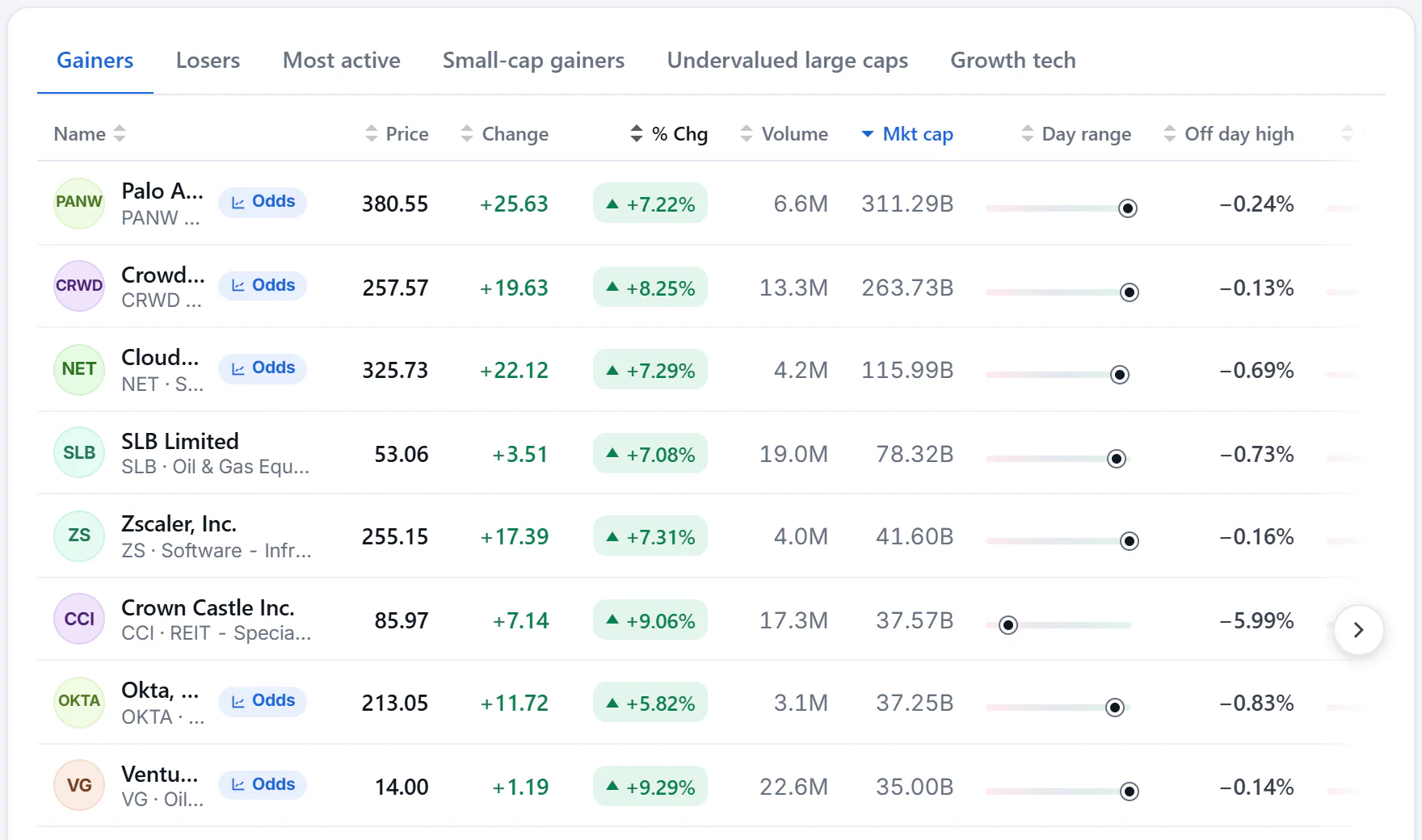
Sorted by market cap, largest first. The arrow beside the heading shows which column and which way.
- 1Select a heading to sort by it
- 2Day range
- 3The dot is today's price between the low and the high
- 4How far below today's high
- Select a column heading, such as Mkt cap or Volume. The table sorts by it, largest first for numbers.
- Select the same heading again to reverse the order.
- Select it a third time to put the table back in its own order.
Words sort from A, and ranks, dates and quarters sort earliest first. A cell with no figure always goes to the end, whichever way you sort. Live price changes do not shuffle the rows while you read, and a list that refreshes itself keeps the sort you chose.
Not every table can be sorted. The comparison tables, the financial statements and the analyst estimates read across rather than down, so they keep their order.
#Slide wide tables sideways
A table with many columns can be wider than its card. Small arrows appear at its edges; select one, or drag, scroll or swipe sideways, to bring the other columns into view. On a small screen, the small chart and the change in points are left out of a table that also shows the percentage change, so that the name, the price and the percentage change stay on screen. See Finance on a phone.
#Open a row
Select anywhere on a row, not only the name, to open that stock's page. Ctrl-select (Cmd-select on a Mac) opens it in a new tab.
#Read the range columns
Four columns appear on many lists:
| Column | What it shows |
|---|---|
| Day range | A bar from today's low to today's high, with a dot where the price is now |
| Off day high | How far below today's high the price is, in percent |
| 52-wk range | The same bar for the last 52 weeks |
| Off 52-wk high | How far below the 52-week high the price is, in percent |
A dot at the right end of a bar means the price is at its high; at the left end, at its low. A figure of 0% under Off day high means the price is at the day's high; a figure of -12% means it is 12% below. Hover over a bar to see the low and high figures it spans. Sorting by a bar column orders the rows by where the dot sits, so you can bring the stocks near their highs, or their lows, to the top.
The dots and the percentages move with the live price while the page is open.
Coin tables use the same idea with 24h range, Off 24h high and Off all-time high.
#Filter buttons
Some tables have filter buttons above them, such as the sectors on Top stocks or the regions on the currencies page. Select one to show only matching rows, and All to show every row again.
#Common questions
Does my sort survive a refresh?
Yes. A list that refreshes itself while you have the page open keeps the sort you chose. Reloading the page starts again from the table's own order.
Why is a range bar empty or a dash?
There is not enough price history to place the price. A newly listed stock has no 52-week range, for example, and some indexes have none.
Is a stock close to its high a good buy?
The columns describe where the price is, not what it will do. They are a way to find and compare, not a signal.