Run your first search
On this page
You search on 4Search the way you search anywhere: type, then press Enter. This page follows one search from the first letter to a narrowed result so you know what each part of the answer is.
#Type your words
-
Open the home page and select the search box, which says Search or ask anything…. You can use a few keywords (
heat pump) or a full question (how does a heat pump work). -
Type. After two letters a list of suggestions opens under the box.
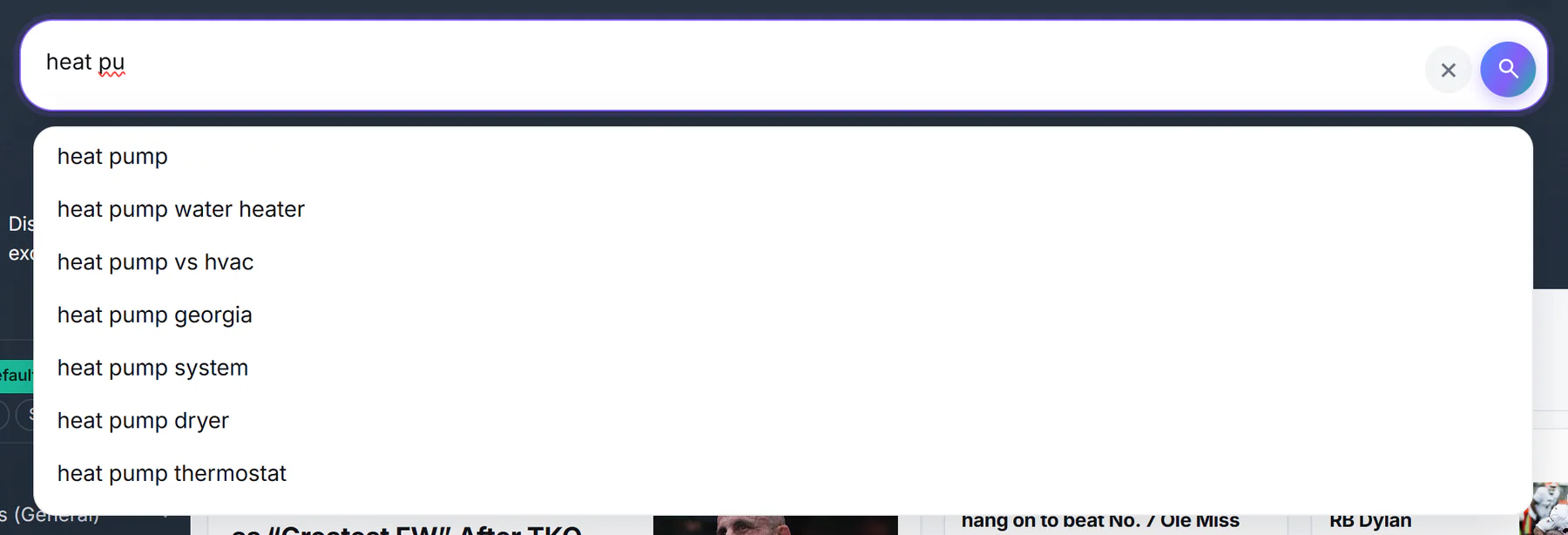
Suggestions appear as you type. Select one, or keep typing.
- 1Type your words
- 2Clear the box
- 3Suggestions appear as you type
-
Press Enter, or select the round search button at the right of the box.
A few details about the box and its suggestions:
- Use ↓ and ↑ to move through the suggestions. Pressing Enter on a highlighted suggestion puts it in the box without searching; press Enter again to search. Esc closes the list. A hint at the bottom of the list repeats these keys.
- Press Shift+Enter to start a new line in a long question. A plain Enter always searches.
- Once there is text in the box, a small × clears it.
- Suggestions and the Enter key need JavaScript. With JavaScript turned off, type your search and select the search button; Enter then adds a new line instead.
#Read the results page
The results page keeps the box and the tabs at the top, so you can change your search without going back.
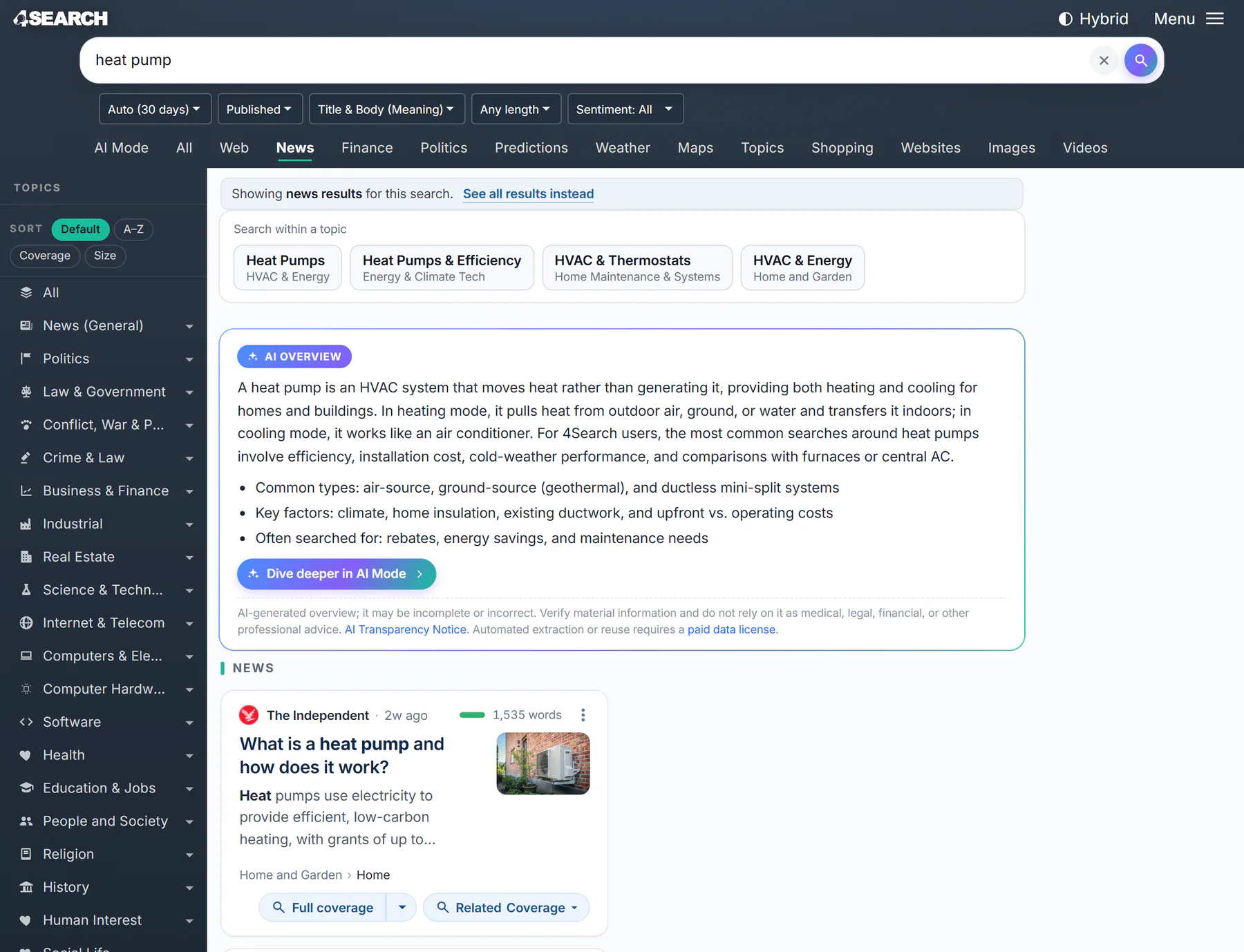
Results for heat pump. Here 4Search chose the News tab for this search.
- 1Your search words
- 2The tab you are on
- 34Search chose News; you can switch
- 4AI Overview
- 5A news result
- Your search words stay in the box. Edit them and search again, or select × to clear the box.
- The tab you are on is underlined. A search from the home page may land on a tab other than All.
- A short note says when 4Search chose a tab for you, for example Showing news results for this search. It guesses from your words whether you want news, shopping results or websites. If it guessed wrong, select See all results instead to run the same search on the All tab, where web and news results sit side by side.
- The AI Overview is a short written answer above the results. It appears when AI answers are allowed; see the next section.
- The results are cards. A news card shows the publisher, how long ago it was published, the headline, an excerpt and buttons such as Full coverage. The topic suggestions under Search within a topic offer subjects that fit your words.
On the All and Web tabs, a Web column and a News column sit side by side. The web results come from Google's search service, which the page calls Google-hosted search. The news results come from the index 4Search builds itself. Result cards explains everything a card shows.
#Where the AI answer comes from
The AI Overview is written by an AI service, not by an editor. It is shown only after you allow AI answers, because your search words and short excerpts of the results on the page are sent to the AI provider to write it. If you have not allowed it, the box explains that and offers Allow AI Answers. You can change this at any time in Your Privacy Choices.
An AI Overview can be incomplete or wrong, and it says so in small print under every answer. Treat it as a quick orientation, check the sources it mentions, and do not rely on it for medical, legal or financial decisions. Dive deeper in AI Mode carries your question into a conversation where you can ask follow-ups. See AI Overview and AI Mode.
#Narrow your search
Four controls change what you see without starting over.
- Set a time window. The first menu in the filter row is the date. It starts on Auto, which picks a window that fits your search and shows it, such as Auto (30 days). Choose a fixed period, from 1 hour to All, to override it.
- Switch tabs. The same words on Images, Videos, Websites or Shopping give a different kind of result. See Choose the right tab.
- Follow one story. Select Full coverage on a result to search the whole index for other reports of the same story. Its small arrow narrows the search to one of the card's topics. See Full coverage.
- Search inside a topic. Choose a chip under Search within a topic, or type your words and then select a topic in the topics list. 4Search runs your words only in that topic. See Topics and your front page.
The other filters in the row choose which part of an article to match, how long the article must be, and its sentiment. Apply to web lets the date also narrow the web results. You do not need any of them for a good first search. See Searching for the full list and for search operators.
#Common questions
Why did my search open the News tab instead of All?
4Search looks at your words and, when it is fairly sure they are about news, shopping or a website, it takes you to that tab and says so at the top. Select See all results instead to run the same search on All.
Why are there no results from the last few days?
Check the date menu. On Auto the window depends on your search; choose a longer period such as 90 days or All to look further back.
Do I have to allow AI answers to search?
No. Search results, filters, tabs and topics work without AI. Only the AI Overview and AI Mode depend on your choice.